
Introduction
Many a times the need is to manage one MBOM per site. We can achieve this using the organization, which is relying on the P&O.
The 3DEXPERIENCE Platform provides the ability for companies to plan and authorize the use of Manufacturing Items on a plant-specific basis. This includes setting plant preferences from a manufacturing view. These plant preferences and authorizations are evaluated when generating a plant-specific MBOM.
This document is intended to provide a detailed guide and example on how to write Business Rule for MFN widget to create Plant specific MBOM structure based on Organization value.
We can reuse the existing scoped Mfg. items that belongs to same plant.
Please note that it is possible to manage "Plant" as an organization from content widget in Platform Management. The following page can be referred for more details.
How to manage “Plant” as an organization using Platform Management dashboard
Version – On premise: 2022x FD03 (FP2223), 2023x FD04 (FP2333)
On Cloud : 2022x HotFix 4.9
Pre-requisites
Licenses – In order to execute this script successfully, user must have below licenses assigned:
| TXO | To deploy the BL |
| XEN | To define the ‘Manufacturing Responsibility’ for EBOM. |
| MFN | To test the BL |
Disclaimer:
Licenses mentioned above are as per 2022x documentation.
| PLM Opening ID | MfgItemInstantiationActionBL |
| Customization intent | Execution |
| Execution context | On premises: MFN widget On the cloud: MFN widget (Starting R2021x.HF5) |
| Usage | On premise: Executed when we run ‘Create Mfg. Items Structure’ command or drag and drop the Eng. Item on Mfg. item in MFN widget. On Cloud: Executed when we drag and drop the Eng. Item on Mfg. item in MFN widget. We can use this business rule for the MBOM creation in MFN widget as per the conditions depending on the particular requirement. |
Example
We can use this business rule opening to filter the existing scoped Mfg. items for the Eng. Item based on the organization and reuse if the organization matches with the current organization.
In this example we are defining ‘Manufacturing Responsibility’ for EBOM using XEN and creating MBOM structure accordingly.
There are two Plant Organizations involved in defining MBOM; a "Pune" Plant which "Makes" a sub-assembly end-item, and a "Bangaluru" Plant which will consume the end-item within a Final-Assembly type of MBOM structure.
If the Eng. item already has a scoped Mfg. item (in database) which belongs to the same organization then that Mfg. item is reused in the structure else new Mfg. item is created.
Logical Flow
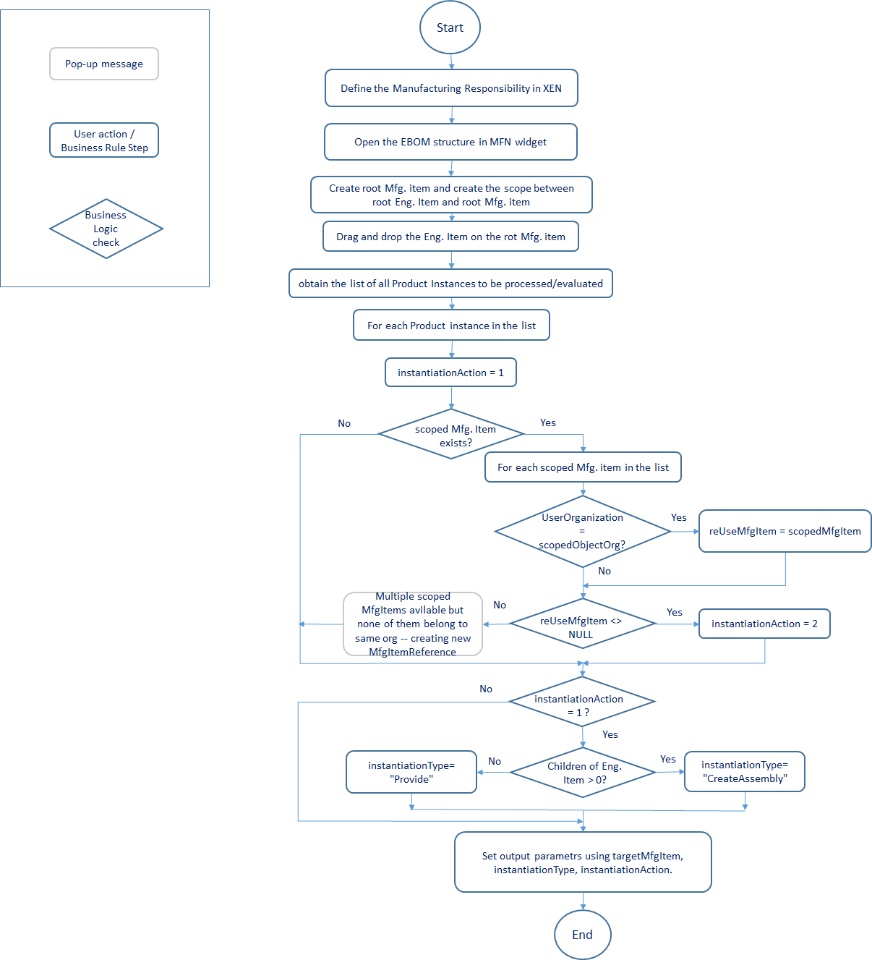
Example Business Rule
Detail Description:
First of all we check if we have any existing scoped items for the Eng. Item.
If the scoped Mfg. item exists then we can check its organization. If the organization of scoped Mfg. item matches with the current organization then it is reused in the MBOM structure (instantiationAction =2).
If we have multiple scoped Mfg. items available in database but none of them matches the current organization then we create a new Mfg. item reference (instantiationAction = 1).
Logic to find the scoped Mfg. item matching the current organization
if(ScopeList.Size() <> 0)
{
      index = 1
      for index while index <= ScopeList.Size()
      {
           set scopedMfgItem = ScopeList.GetItem(index)
           set scopedObjectOrg = scopedMfgItem->GetAttributeString("organization")
           if UserOrganization == scopedObjectOrg // Orgs match, so reuse the scoped item
           {
                set reUseMfgItem = scopedMfgItem
           }
           index = index + 1
      }
      if(reUseMfgItem<> NULL)
      {
            set instantiationAction = 2                    // We are in REUSE mode !
      }
      else
      {
            Trace (1, "Multiple scoped MfgItems avilable but none of them belong to same org --
            creating new MfgItemReference")
      }
}
If no scope links exists, create a new Mfg. Assembly (if the current product has children) or Provided Part (if current product has no children).
Logic to create new Mfg. item
if( instantiationAction == 1 )  // Create new Mfg Item Reference
{
            if ( oFilteredList.Size() > 0 )
            {
                    set instantiationType= "DELAsmAssemblyModelDisciplines/CreateAssembly"
                    set virtualID = "EKLVirtual" + currentReference.PLM_ExternalID
            }
            else if ( oFilteredList.Size() == 0 )
            {
                    set instantiationType= "DELAsmAssemblyModelDisciplines/Provide"
                    set virtualID = "EKLVirtual" + currentReference.PLM_ExternalID
            }
}
We can decide the type of Mfg. item to be created depending on the particular requirement.
InstantiationAction:
1 - Create new Mfg. item
2 - Reuse existing Mfg. item
Similar to the above example we can use
Scenario
Consider an EBOM structure - Gearbox assembly as shown in below image.
Setting Manufacturing Responsibility
Let’s define ‘Manufacturing Responsibility’ for Eng. Item ‘ICGRBOX0001’ using Engineering Release widget.
Select the information icon from top right corner in Engineering Release widget.
Select tab from properties of the Eng. Item and click on icon to define manufacturing make or buy.
Select the organization ‘Pune’ to define Make (Manufacturing Assembly) as shown in below image
Select the organization ‘Bengaluru’ to define Buy (Provided Part) as shown in below image.
Working in ‘Pune’ organization
Now let’s edit the preferences for MFN app and select the organization as Pune.
Create a root Mfg. item in MFN and create a scope with the root Eng. Item
Dragging and dropping the Eng. Item ‘ICGRBOX0001’ will create a Mfg. item which will be a reuse of Mfg. Assembly created in XEN.
Working in ‘Bangaluru organization
Now let’s edit the preferences for MFN app to switch to ‘Bangaluru’ organization.
Let's create a root Mfg. assembly in Bangaluru organization (Bangaluru_MBOM) and scope it with root Eng. item.
Now if we try dragging and dropping the Eng. Item ‘ICGRBOX0001’ on root Mfg. item, it will create a Mfg. item which will be a reuse of Provided Part created in XEN.
This rule works when we run the ‘Create Mfg. Items Structure’ command in MFN as well.
Similarly using this business rule opening we can create an MBOM structure in MFN widget based on collaborative space (if each plant has a unique collaborative space) or based on any other particular requirement.
We can put the conditions to reuse the existing Mfg. item or to create a new Mfg. item of specific type.
Business Rule Deployment
On Premise:
The below page can be referred for Business Rule deployment using Data Model Customization app (TXO).
Business Rule Deployment using Data Model Customization App
Resource Set and opening:
On Cloud:
The below page can be referred for Business Rule deployment using Data Setup app.
Business Rule Deployment using Data Setup App
Resource Set:
Opening:
When you create your Business Rule using the Data Setup App you must specify "Server-only" for the scope of this Business Rule.
We cannot change the scope of the business rule once it is created.
One can face issues in deployment of this particular Business Rule using Data Model Customization app. The following page can help to have to avoid such issues.
Important points to remember in creation/ deployment of this Business Rule
Reference:
Documentation: As of now there is no documentation available on dsdoc for this business rule opening.
Author
Author: @JJ
For any queries, please reach out to - @JJ or @KA
