New enhancements in this release for this role:
(Tip: You can use the Table of Content  on the right side to view the list of all enhancements)
3DSwym
3DSwym: Brand New User Experience |
Why Intuitive navigation and seamless collaboration thanks to the brand new user interface |
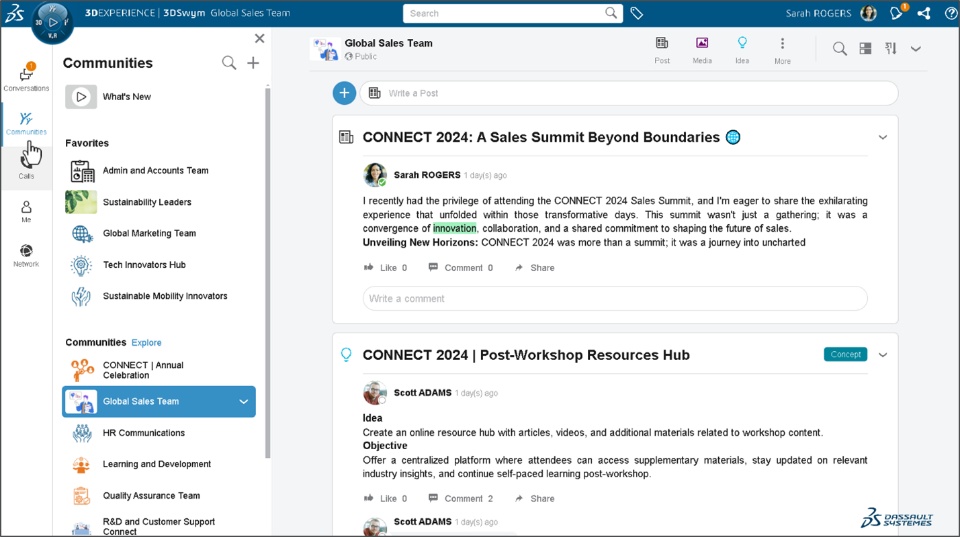
How The user interface of the 3DSwym app is revamped to enable intuitive navigation and seamless collaboration: - Redesigned Navigation Panel:
- Use the redesigned navigation panel to seamlessly access your Conversations, Communities, Calls, Profile, and Network.
- You can also seamlessly hide the Communities Panel to declutter the space and increase readability.
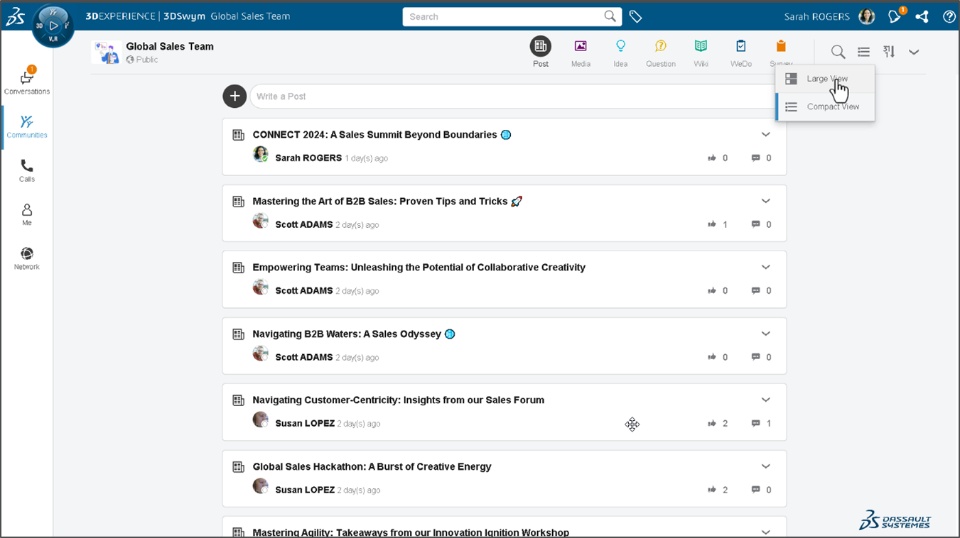
- You can choose the Compact View for a more efficient display of content with minimal space utilization
- Local Search:
- The local search option within the main section allows you to quickly locate the content you require
- Redesigned Create Content:
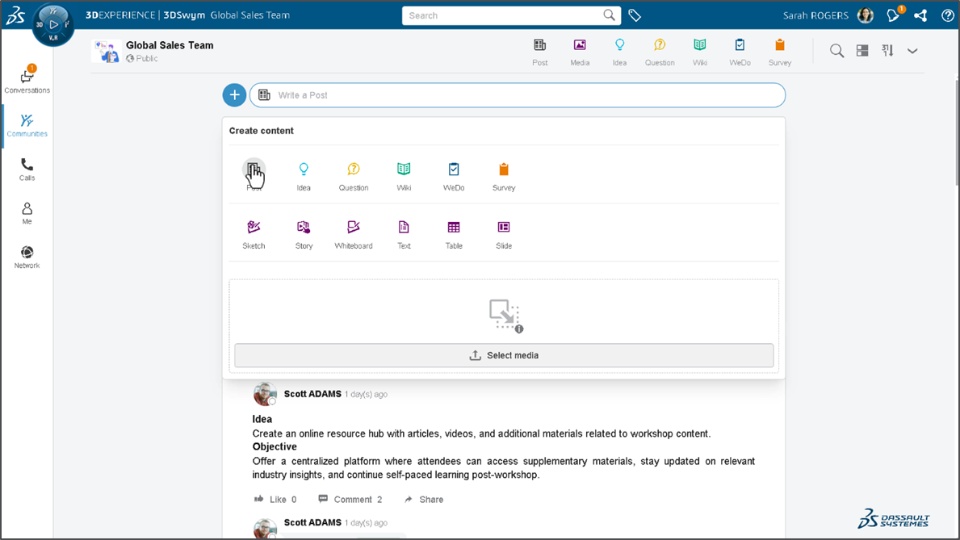
- The redesigned Create Content dialog box allows you to quickly choose the type of content you wish to create.
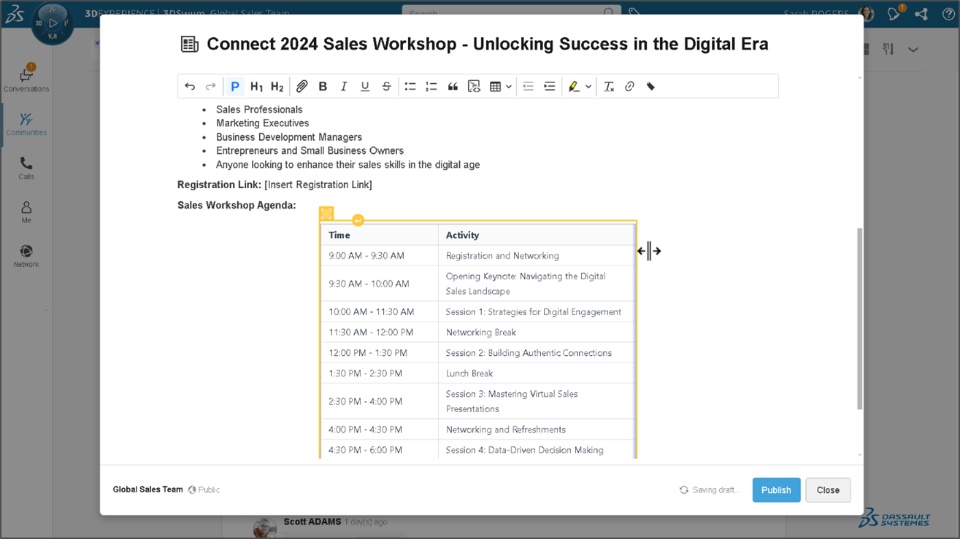
- You can utilize the new Rich Text editor coupled with colored highlight option for more impactful content creation. You can also conveniently adjust the table column size using the mouse to save time
- Content Forward:
- You can use the revamped content Forward option to quickly forward content to any Community or Conversation. It also allows you to Choose the desired type before forwarding the content.
- 3DSwym Wiki:
- The 3DSwym Wiki interface is improved to deliver a seamless user experience.
- You can adjust the Wiki Panel size for a more convenient viewing experience and to declutter the space.
- You can also utilize the Search function to swiftly locate the desired wiki page.
- Conversations:
- This section is revamped to seamlessly access to all your discussions
- Calls:
- A new Calls section is introduced that allows you to view your preferred contacts and their corresponding call history.
- Me:
- Me section is revamped for quickly accessing your Contributions, Draft, Bookmarked items, and Profile.
- Network:
- The new Network section is provided to easily access your connections and viewing their community activities
Note: This new user experience is available on cloud only.
 |
3DSwym: Report Abuse Feature Enhancements |
Why Improved clarity while reporting abuse thanks to the enhancements in the Report Abuse feature |
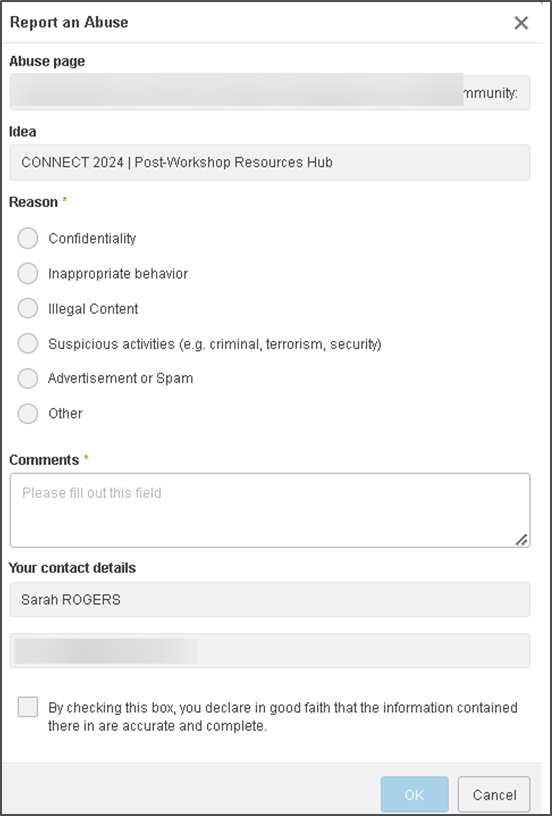
How - The “Report Abuse” dialog box is improved to let you enter more details and provide more clarity about the abuse you are reporting.
- The new “Manage Abuse” section is provided to platform administrators in the control center to seamlessly view and take action on the reported abuses.
- The status of the abuse (Opened/Assigned/Under Review/Closed/Refused) can be used to sort or filter the abuses and effectively manage them.
Note: This enhancement is available on cloud only.
 |
🎬 To discover more about these enhancements, watch the video below:
3DWhiteboard
3DWhiteboard: Hyperlink on Objects |
Why Improved navigation and insights thanks to the ability of adding hyperlink on the objects |
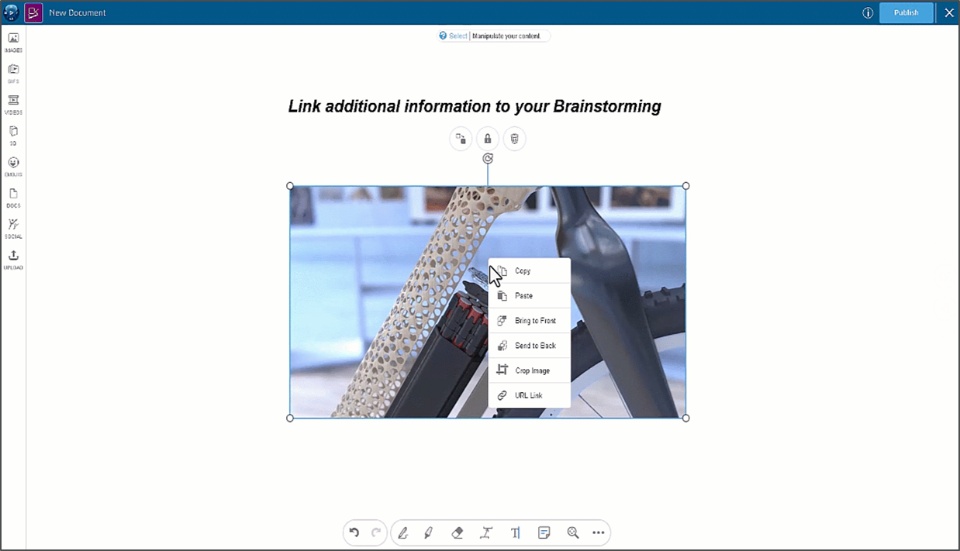
How - You can now access the new “URL Link” option the context menu of the following objects in the 3DWhiteboard app:
- Media: Images, GIFs, and videos
- Text boxes
- Sticky notes
- This allows you to add a hyperlink that redirects the user to specific internal or external resources for more information.
 |
3DWhiteboard: Layering Elements Automatically |
Why Quickly arrange images of different sizes on the canvas using auto layering feature |
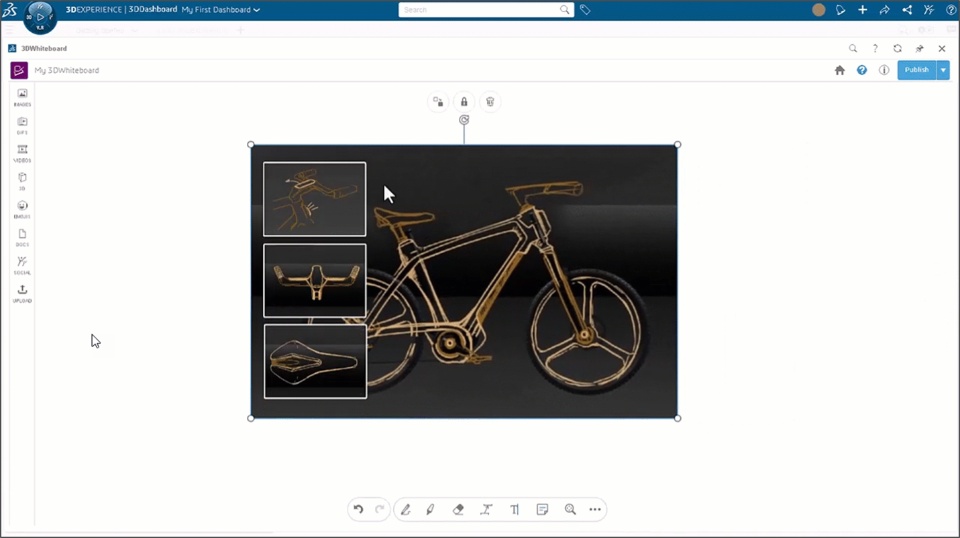
How - You can now use the auto-layering functionality to seamlessly arrange the images of different sizes on the canvas.
- As such, when you overlap images on the canvas, the smaller image is positioned automatically on top of other images.
 |
3DWhiteboard: Modifying Text Styles |
Why Improved readability and aesthetics thanks to the ability of modifying text styles |
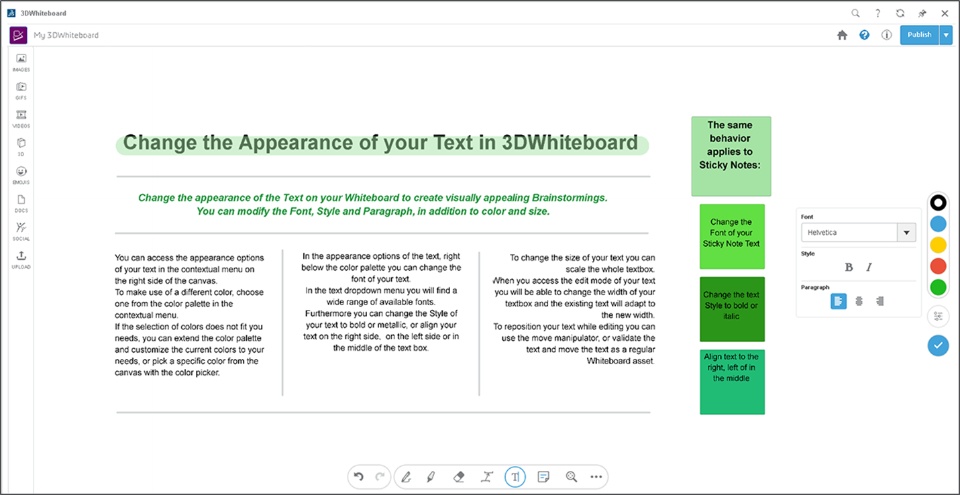
How - You can now modify the properties of your text by updating the following attributes of it:
- Font Name
- Font Style: Bold, Italic
- Paragraph Layout (Text Alignment)
 |
3DWhiteboard: Manipulating Elements |
Why Improved precision in positioning your assets thanks to the new 5-point handle |
How - After adding media on your 3DWhiteboard, you can now use the new 5-point handle to resize and seamlessly position your media.
- This handle can be used to rotate, resize, reposition, realign your assets.
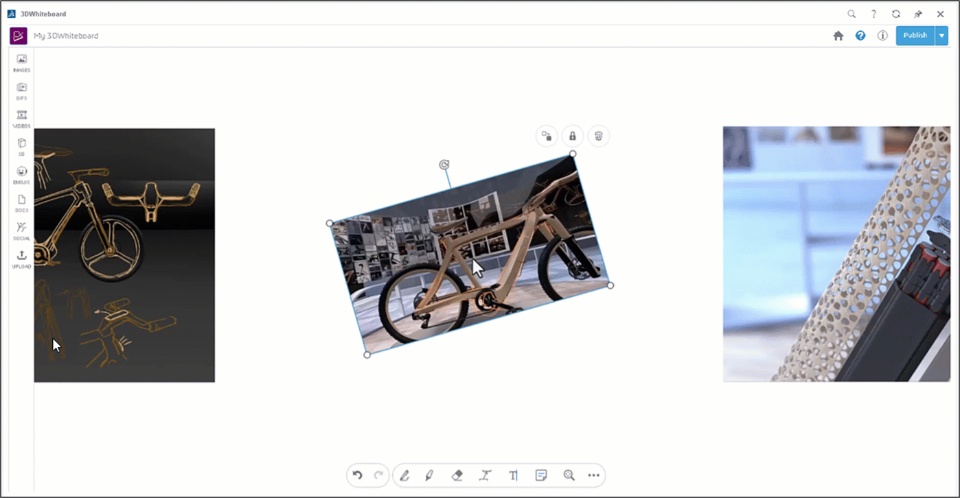 Note: This enhancement is available on cloud only. |
3DWhiteboard: Adding Unified Annotations and Sticky Notes |
Why Improved organization and consistency thanks to the unified annotations and sticky notes |
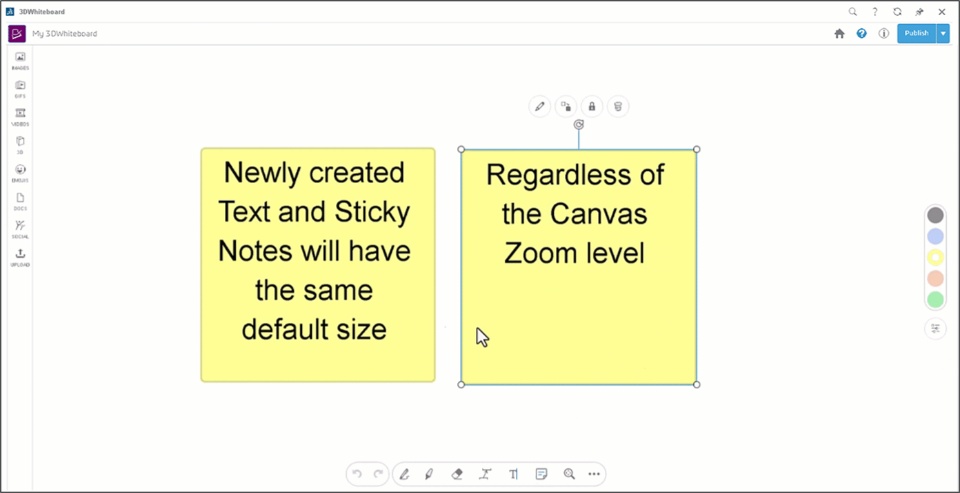
How - The Annotations and Sticky Notes on your canvas now come with a default size, facilitating the creation of organized and consistently engaging content.
- After insertion, you have the flexibility to resize these elements as required.
 |
3DWhiteboard: Moving Layered Elements Together |
Why Faster arrangement of your assets thanks to the concurrent moving capability of the layered elements. |
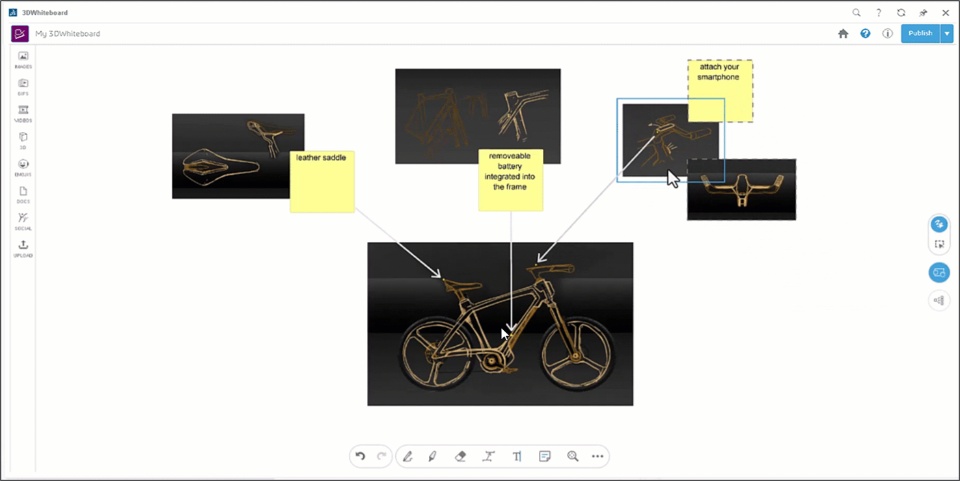
How - You can now use the new “Selection Mode” icon to move multiple assets in single manipulation..
- When you select this option, all the elements that are stacked together can be moved in a single manipulation.
 Note: This enhancement is available on cloud only. |
3DWhiteboard: New User Interface |
Why Faster ideation and brainstorming thanks to the new intuitive user experience of the 3DWhiteboard app |
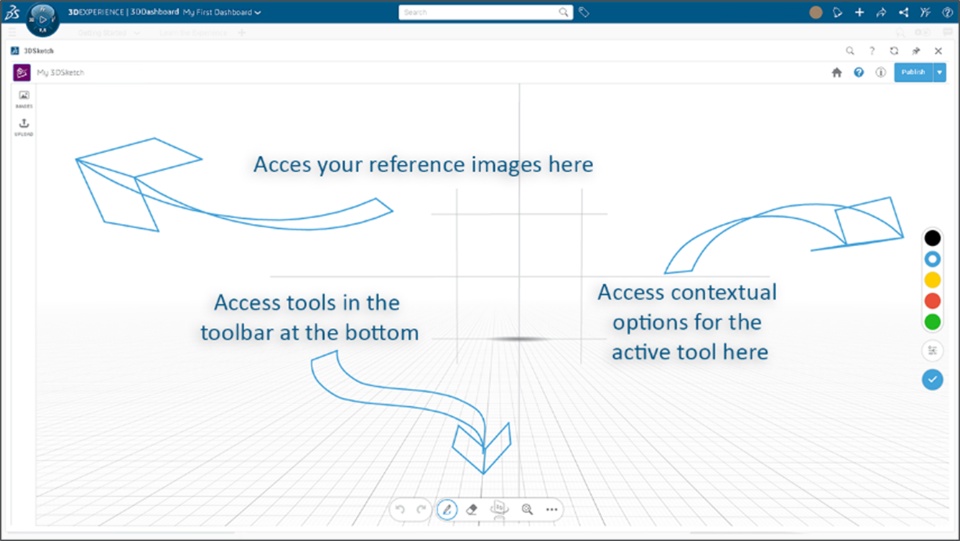
How - You can now use redesigned 3DWhiteboard app interface that a has consistent arrangement of tools and options for seamless ideation and brainstorming. The user interface for mobile devices is also revamped for smoother experience.
- Media Panel Container: Media types are visible on the left side of screen. Clicking a type will show the media panel.
- Undo Redo button: Positioned on the left side of panoply bar
- Panoply Bar:
- Panoply bar icons have been updated, with active buttons now highlighted in blue.
- Clicking an active button in the panoply bar deactivates it and ends its associated panoply or command.
- The panoply bar includes buttons for: Sketch, Highlighter, Eraser, Diagram, Text, Sticky Note, Reframe, and a three-dot button for additional menu options.
 |
3DStory
3DStory: New Background Modes |
Why Improved viewing experience thanks to the new background modes |
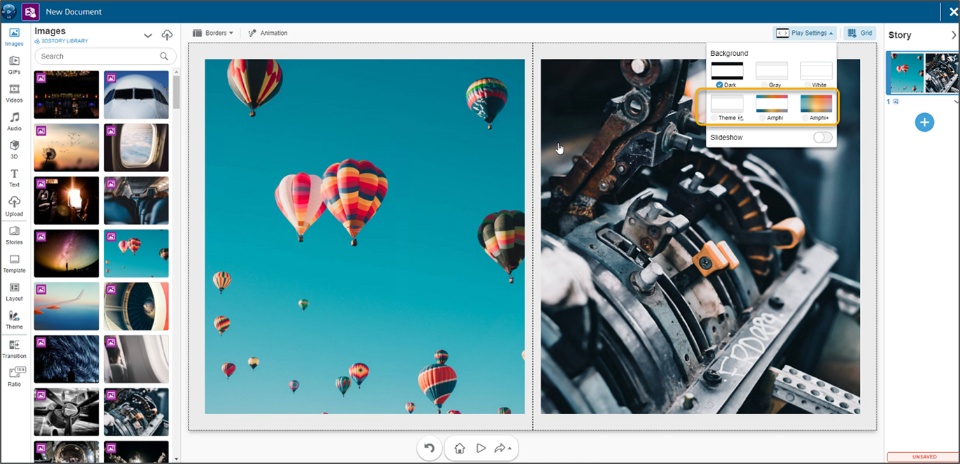
How - You can now select the new “Theme”, “Amphi” or “Amphi+” Background option from Play Settings of your story.
- Theme Mode:
- Sets play background color to Theme Background color. This color is defined per scene, so may change when changing scene at play
- Amphi Mode:
- Sets play background as a blurry filter of the current slide, with some "slow pulse" animation
- Background is only applied outside story borders. Background color is also impacted by Theme Background color
- Amphi+ Mode:
- Sets play background as a blurry filter of the current slide, with some slow pulse animation.
- In addition to standard Amphi mode, empty background cells are also replaced by this animated background
 Note: This enhancement is available on cloud only. |
3DStory: Enhancements in User Experience |
Why Improved traceability and productivity thanks to useful user experience enhancements |
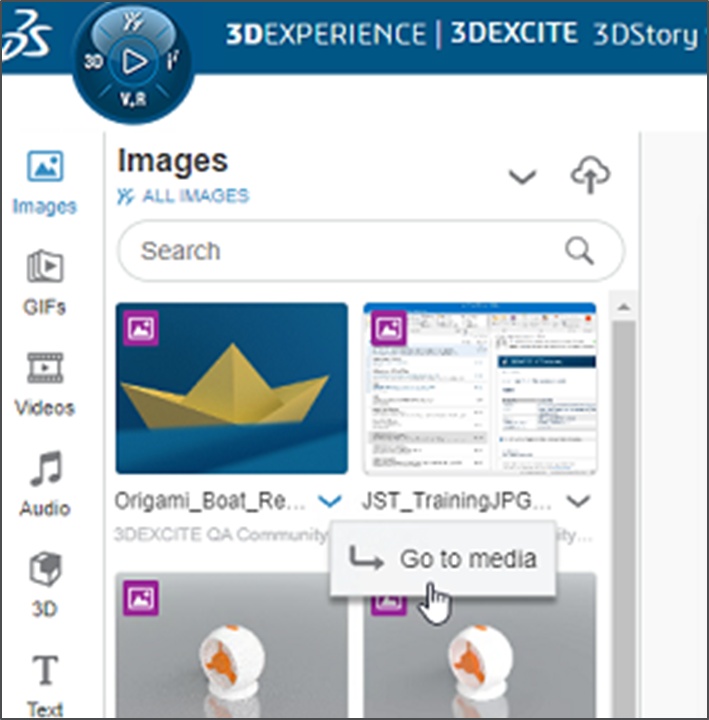
How - Go to Media:
- For all the Media Types (Images, GIFs..), the context menu has a “Go to Media" option that opens the selected media in a different tab. You can then find the properties of the media from Information panel.
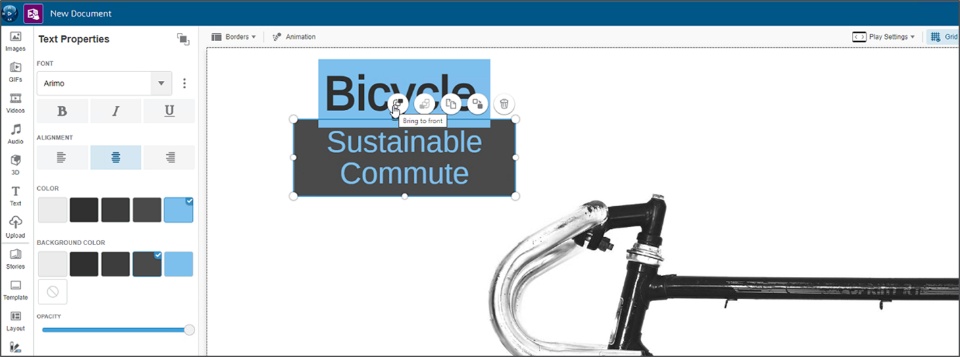
- Z-Order Control
- The two new "Send to Back" and "Bring to Front" options are provided in the context menu of the text objects added in the story. This allows you to manage overlapping text effectively.
- Story UX Improvement:
- The story top bar UX is improved to show the top bar across the screen and not only limited to the scene content (Aspect Ratio)
 Note: This enhancement is available on cloud only. |
3DSearch
3DSearch: Search Dropdown Enhancements |
Why Save time while retrieving the required IP thanks to the enhancements in the 3DSearch dropdown |
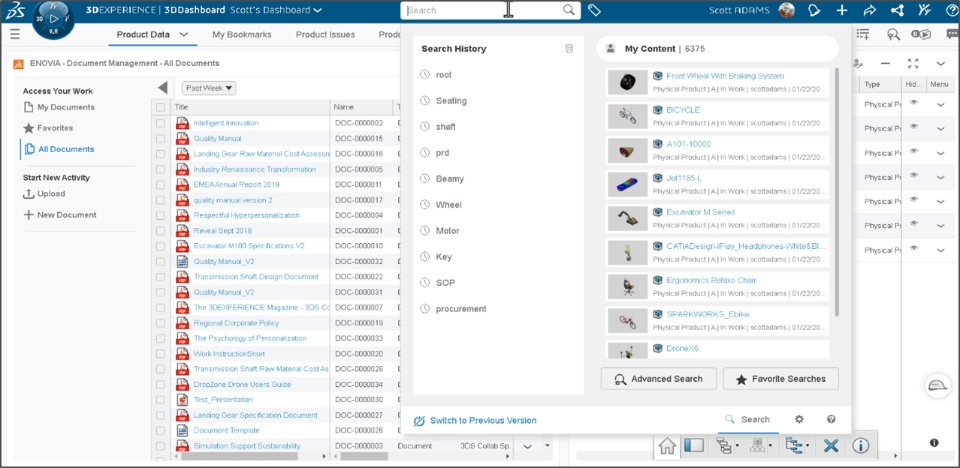
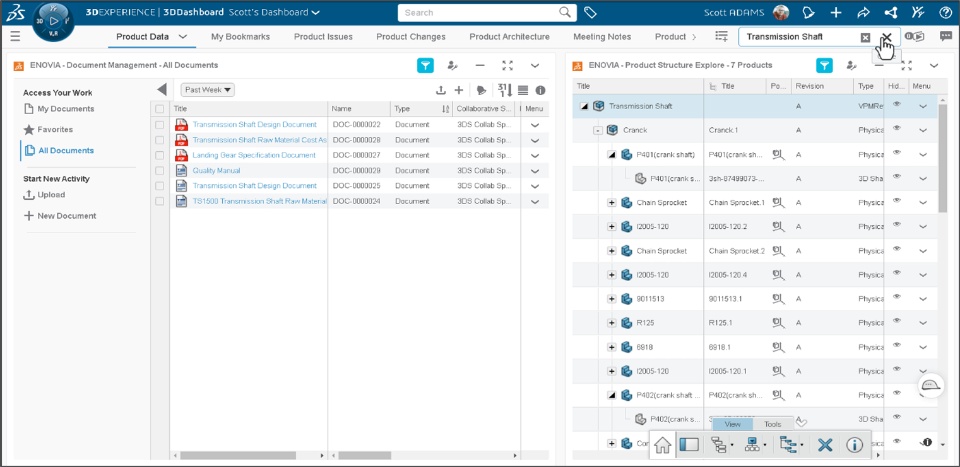
How - You can now use the revamped, user-friendly search dropdown, offering additional features like clearing your search history
- Access the "Switch to Previous Version" option in the dialog box for a seamless transition to the old search UI
- Utilize the "Search in Tab" option to efficiently search across all apps and save time
 |
3DSearch: Maximized 6WTags Panel |
Why Improved space and navigation experience thanks to the ability to maximize the 6WTag panel |
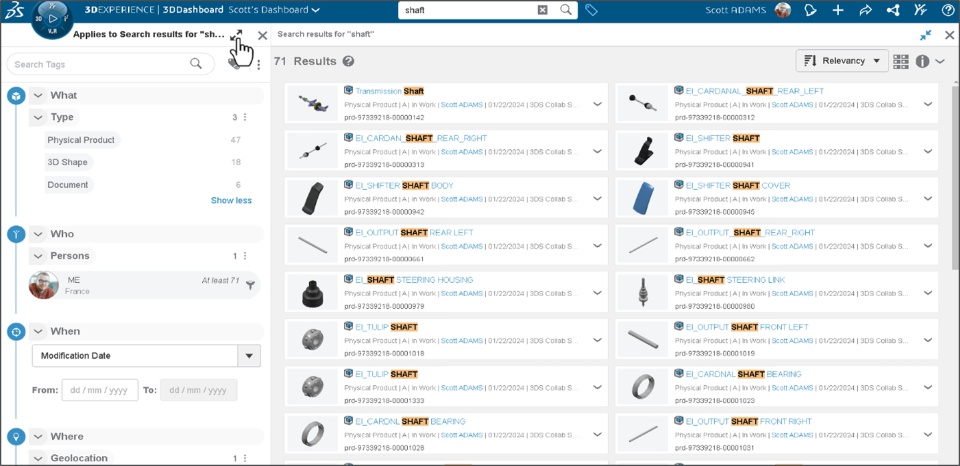
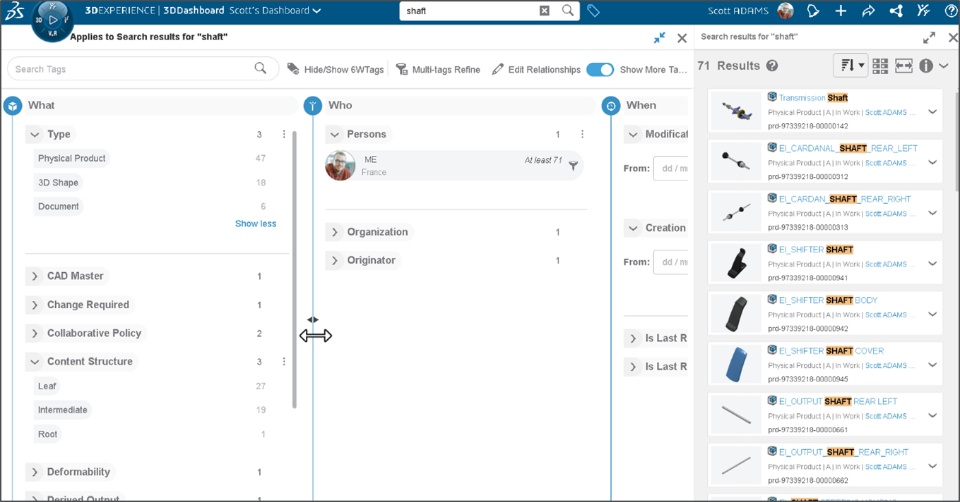
How - In the 6WTags panel, the new “Maximize” button is provided that lets you maximize the panel for increased space, seamless navigation and eased tag selection
- The 6W sections are arranged in a horizontal layout, allowing you to scroll through them by dragging
- You can also manually increase the width of a specific section for a detailed view
 |
3DSearch: Company Tags and Controlled Vocabulary |
Why Quickly search required IP thanks to the ability to deploy company tags of your choice |
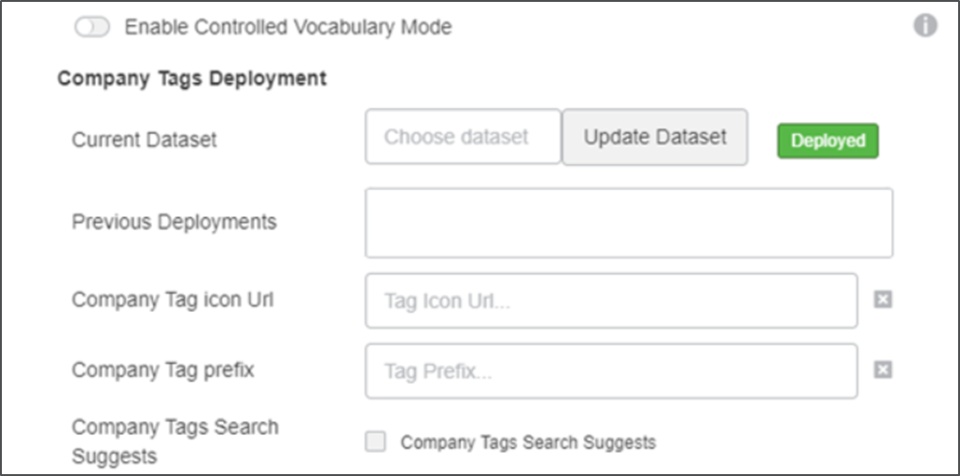
How - The Company Tags Deployment section allows you to select and define the ontology that contains the display tags in the Company Tags category of the 6WTags panel.
- You can also select the “Enable Controlled Vocabulary Mode” check box to allow users to only create Company and Community tags
- Once deployed, your company tags are available to all users in the 6WTags panel.
Prerequisites: - The Company Tags Deployment option in the 3DSearch Control Center is available only with the Data Steward license role.
- Users need the Collaborative Industry Innovator role to use company tags from their own 6WTags panel.
 Note: This enhancement is available on cloud only. |
🎬 To discover more about the 3DSearch enhancements, watch the video below:
3DPlay
3DPlay: Support of LibreOffice Documents |
Why Improved scope of supported files thanks to the support of opening LibreOffice Documents |
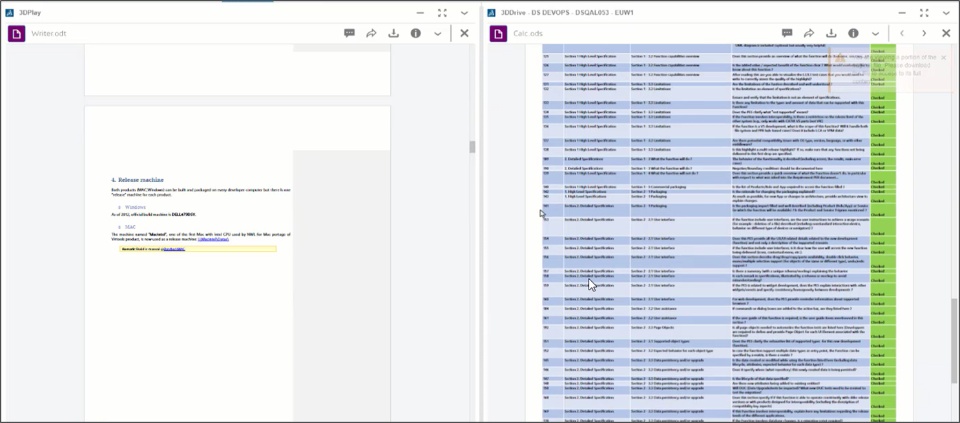
How - You can now open the LibreOffice documents (Open Document Format - ODF) in the 3DPlay Dashboard app.
- You can open this regardless of whether it's stored in 3DDrive or 3DSpace.
- The following file formats are supported: .odt, .ods and .odp.
 Note: This enhancement is available on cloud only. |
3DPlay: Loading Experience Improvement |
Why Improved viewing experience thanks to the enhanced loading |
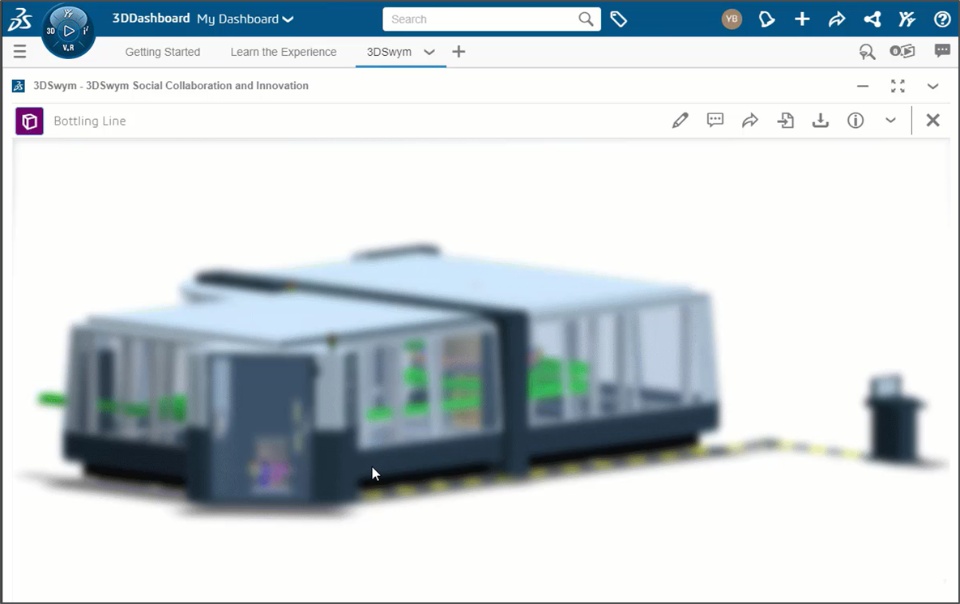
How - When you load content from 3DSwym or 3DDrive, a blurred preview appears until the content is completely loaded.
- This blurred preview during content loading enhances the overall loading experience.
 Note: This enhancement is available on cloud only. |
3DPlay: Product Graphic Properties Persistence When Sharing a Comment |
Why Improved accuracy while sharing review with stakeholders thanks to the persistence of product graphic properties |
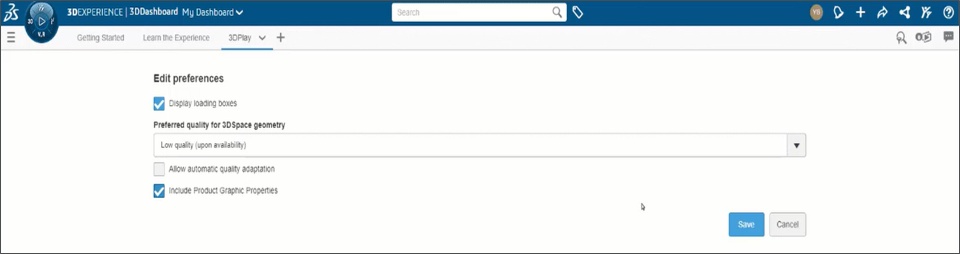
How - You can now use the new "Include Product Graphic Properties" check box from the 3DPlay app Preferences menu.
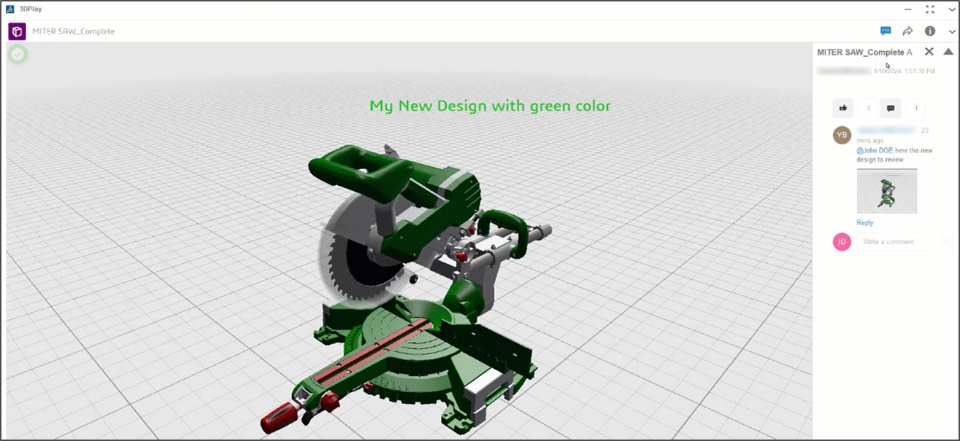
- This allows you to preserve the graphic properties when sharing comments on 3D content. This means, users can access the comment in the same way it was shared, including graphic properties such as color.
 Note: This enhancement is available on cloud only. |
3DPlay: Auto-detection and Viewing of 360° Image |
Why Improved and seamless experience while viewing 360° Image thanks to auto-detection of it in the app |
How - When you open the 360° image, the 3DPlay Dashboard app detects when it and starts the 360° play mode automatically.
Note: You no longer have to start the 360° Play mode manually. 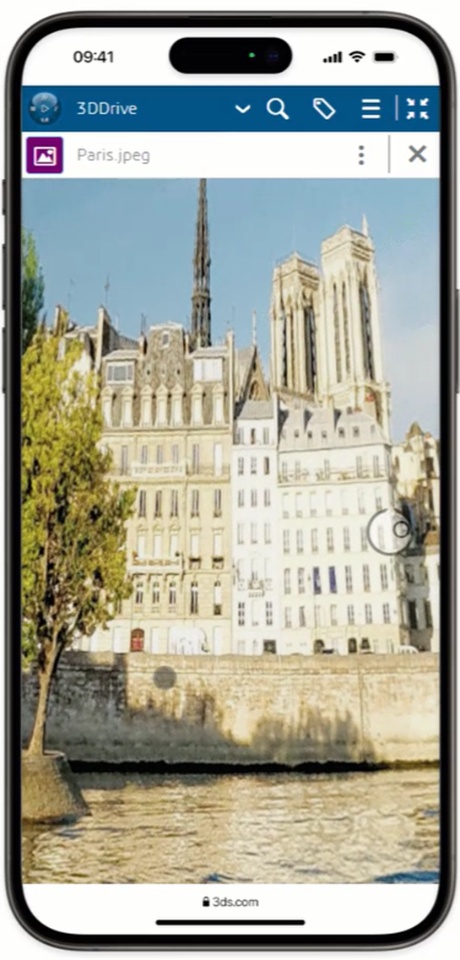 Note: This enhancement is available on cloud only. |
3DPlay: New UI for Excel Documents |
Why Improved navigation experience thanks to new UI to view Microsoft Excel documents containing multiple sheets |
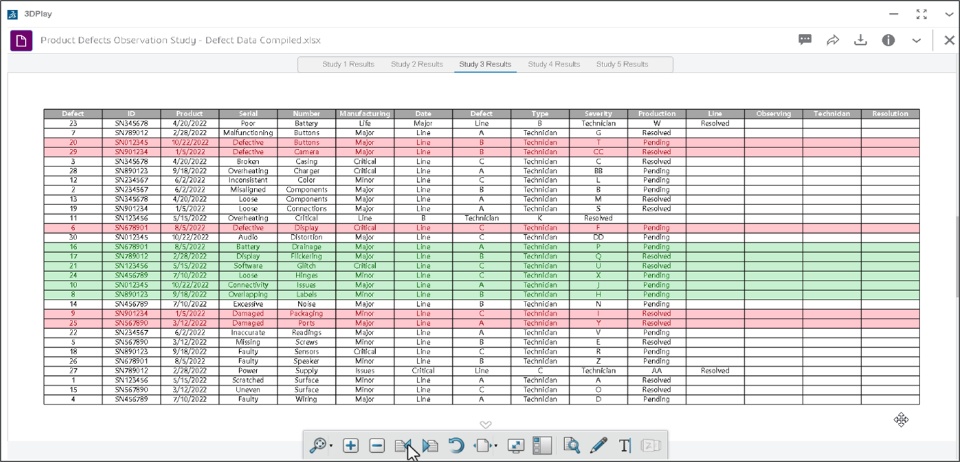
How - In the 3DPlay app, you can now navigate between sheets of the Microsoft Excel document using a tab bar or the navigation buttons on the action bar.
 Note: This enhancement is available on cloud only. |
3DPlay: Change Background Color while Viewing Drawings |
Why Improved viewing experience while viewing drawings thanks to the ability to change background color |
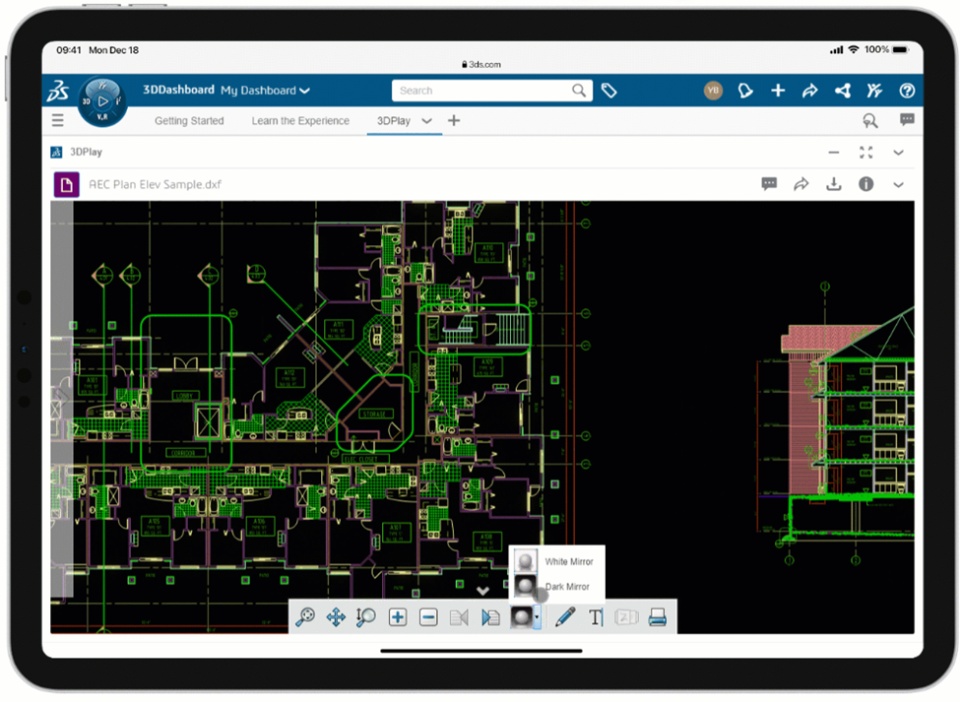
How - You can now easily switch between Dark Mirror and White Mirror modes for an improved navigation experience while viewing drawings
 |
🎬 To discover more about the 3DPlay enhancements, watch the video below:
Potion Lab
Potion Lab: Automation Assets Improvements |
Why Improved usability and scope thanks to the support of new app and triggers |
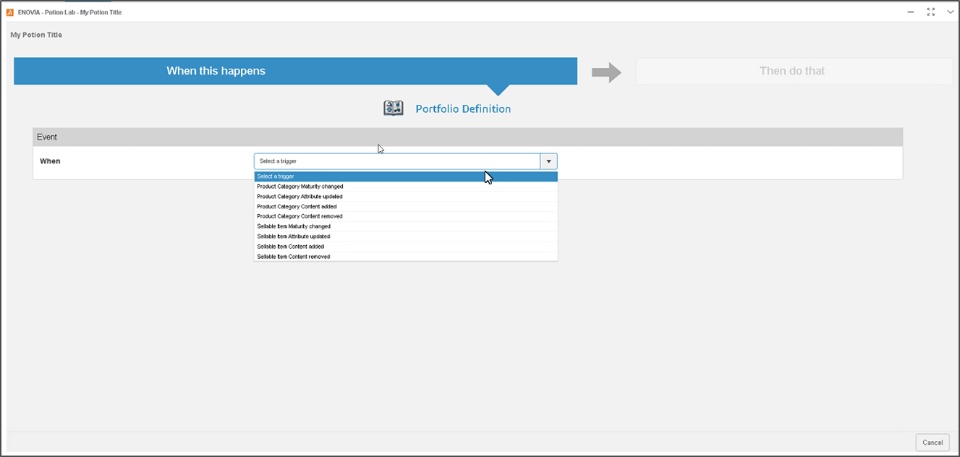
How - You can now use the new Portfolio Definition asset to automate tasks related to portfolio definition and other supported apps.
Note: The Portfolio Definition is supported as an asset if you are granted the Portfolio Definition (XPM) license. - For potion triggers, the user out variables are now available.
- The Social Analytics now has a new trigger called “There is a new article in my Channel”
 Note: This enhancement is available on cloud only. |
Potion Lab: User Experience Enhancements |
Why Improved navigation experience while using app thanks to the enhancements in the user experience |
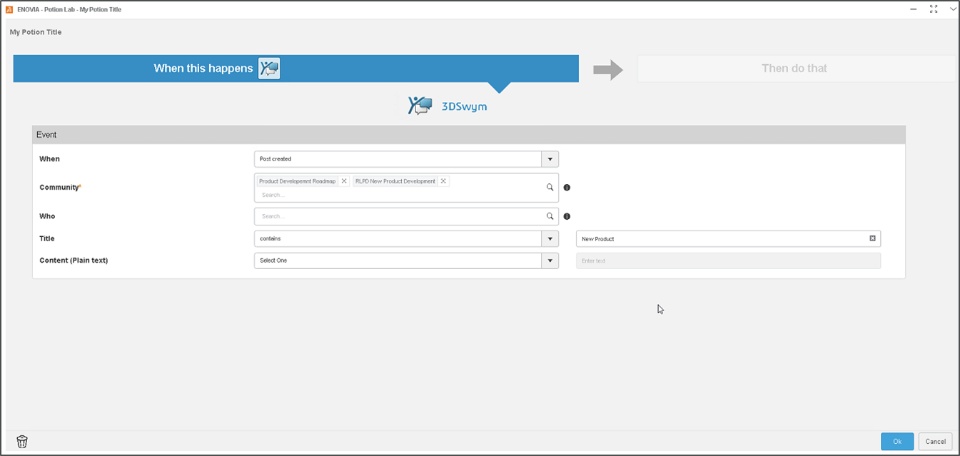
How - You can choose multiple communities in 3DSwym triggers, including the ability to select multiple communities in a search.
- You can now review data generated from potion execution. The Execution Logs provide a link to open the data in the relevant app.
- The current token counts can be seen in the Administration view.
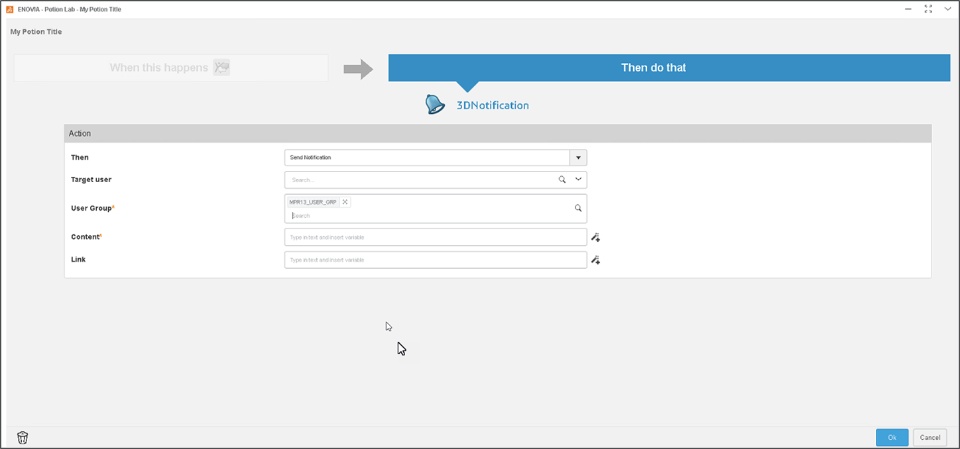
- 3DNotification actions now support user groups. You can select one or more user groups in your action.
 Note: This enhancement is available on cloud only. |
Potion Lab: Filtering Media from NETVIBES for 3DSwym Actions |
Why Improved productivity thanks to the feature of reusing existing media files from article for creating 3DSwym post |
How - In the Potion Lab app, you can now filter the media files contained in the articles while defining the trigger. You can then use them when creating a 3DSwym post.
- This also allows you to select the type of media files you want to include in posts.
- This is supported for Social Analytics with the following trigger events.
When: - There is a new article in my tracked topic.
- There is a new article in my library.
You can also use the filter to select the audio, image, and video files Note: This enhancement is available on cloud only. |
3DDrive
3DDrive: Support of LibreOffice Documents |
Why Improved scope of supported files thanks to the support of opening LibreOffice Documents |
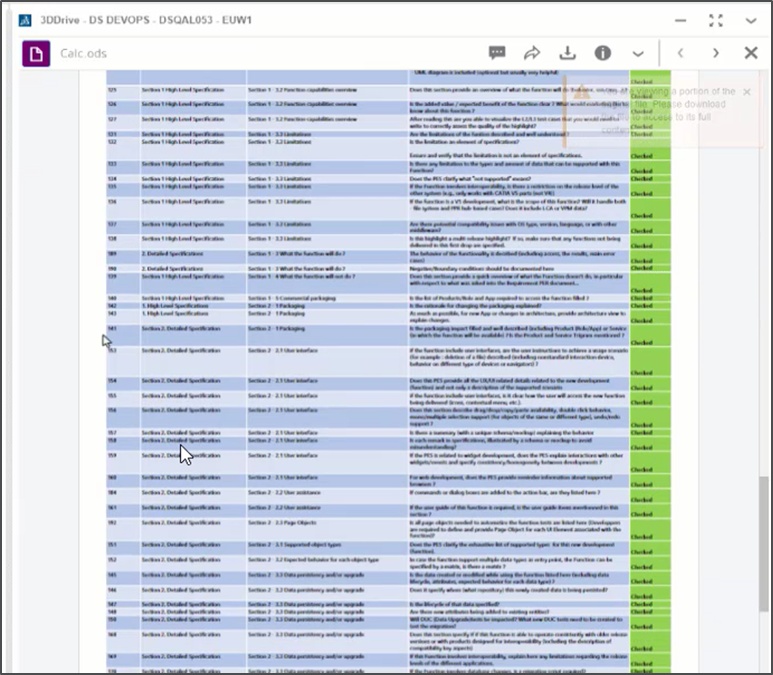
How - You can now easily view LibreOffice documents (Open Document Format - ODF) in the 3DDrive Dashboard app by clicking the Preview button.
- The following file formats are supported: .odt, .ods and .odp.
 Note: This enhancement is available on cloud only. |
3DDashboard
3DDashboard: Creating Templates |
Why Save time by creating and sharing Dashboard templates |
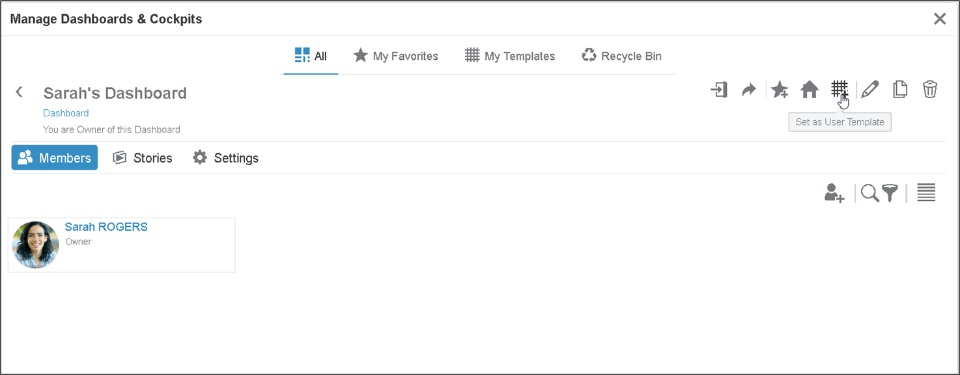
How - You can now set any of your dashboards as a template that you or your colleagues can use.
- This is possible for your own Dashboards or for the Dashboards available to you based on roles assigned to you.
- The “Set as User Template” option is available in the “Manage Dashboard and Cockpits” dialog box that lets you set active dashboard as template
 |
If you have any question or comments on these highlights, please share them with us below. 👇
Thanks!

